


If you’ve ever wondered whether your website is actually generating leads or sales, you’re not alone. Many Australian small business owners install Google Analytics once, glance at the dashboard, and never touch it again, mostly because it doesn’t make sense. Getting your GA4 setup for small business right from the start is the difference between guessing and knowing exactly which marketing efforts bring in paying customers.
This guide walks you through the entire process, step by step, without the jargon. Whether you run a local trades business, an online store, or a professional service company, you’ll learn how to set up GA4, track form submissions and phone calls, and read your reports with confidence.
Need a hand getting this right the first time? Our team offers a hands-on GA4 setup guide service tailored for Australian businesses.
What Is GA4 and Why It Matters for Your Business
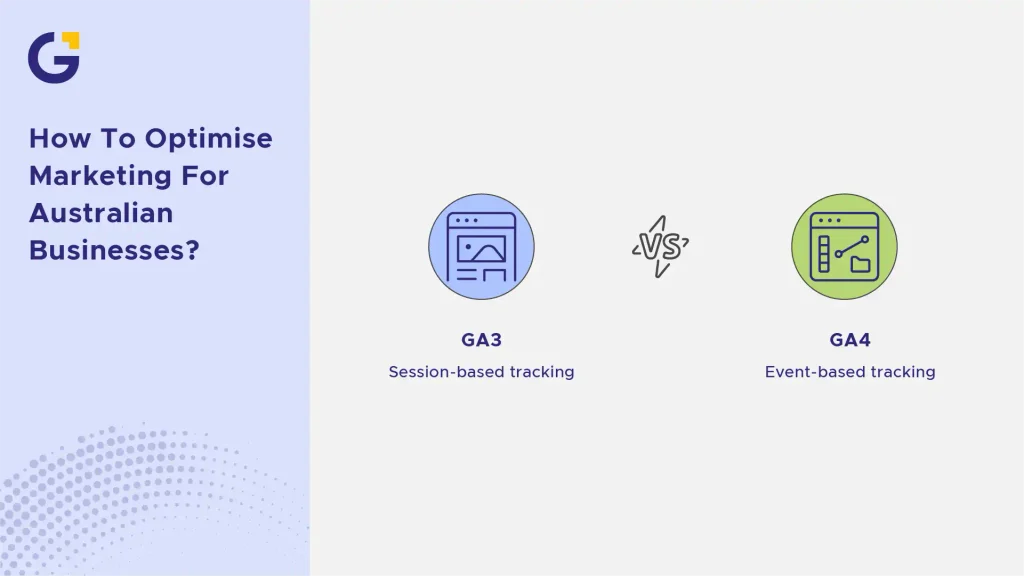
Google Analytics 4 (GA4) is the latest version of Google’s free website analytics platform. Unlike its predecessor, it tracks users across websites and apps using an event-based model rather than sessions and pageviews alone.
For business owners, this means more accurate insight into what happens after someone lands on your site, whether they fill out a form, call your business, or complete a purchase. When aligned with a comprehensive digital marketing strategy for Australian businesses, GA4 provides the exact data needed to scale.
Example Case: A Brisbane-based plumbing company installed GA4 and discovered that 60% of their “leads” were actually coming from Google Maps click-to-call links, not their contact form. This reshaped their entire marketing budget and led them to focus heavily on local SEO services.
- Tracks user behaviour across devices and platforms
- Uses events instead of outdated “goals”
- Integrates directly with Google Ads management for smarter automated bidding
- Free to use, even for advanced conversion tracking
Before You Start: What You Need to Set Up GA4
Before diving into the setup, gather a few essentials so the process goes smoothly. Rushing this step is one of the biggest reasons businesses end up with broken or incomplete tracking.
You’ll need a Google account, admin access to your website (or a web developer/agency contact), and clarity on what counts as a “lead” for your business: form fill, phone call, quote request, or purchase.
Example Case: A Sydney electrician spent two hours trying to install GA4 himself before realising he didn’t have access to his website’s backend code. Confirming access first would have saved hours of frustration.
- A Google account (Gmail or Google Workspace)
- Admin or editor access to your website backend
- Google Tag Manager account (recommended, not mandatory)
- A clear list of conversion actions you want to track
Step-by-Step GA4 Setup Guide
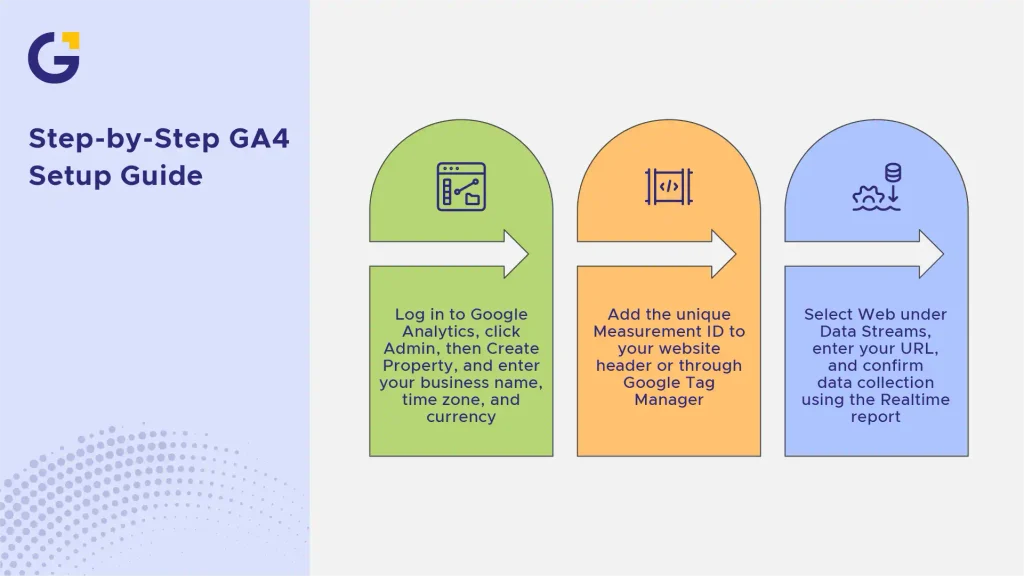
Setting up GA4 properly involves three core stages: creating your property, installing the tracking code, and configuring data streams. Skipping or rushing any of these leads to incomplete data later.
Creating a GA4 Property
Log in to Google Analytics and click “Admin,” then “Create Property.” Enter your business name, time zone (Australia/Sydney, Melbourne, or your relevant state), and currency (AUD).
This property becomes the container for all your tracking data, so accuracy here matters for reporting later.
Installing the GA4 Tracking Code
Once your property is created, GA4 will generate a unique Measurement ID (starts with “G-“). This needs to be added to your website, either directly in the site’s header code or through Google Tag Manager.
If you are using a custom framework or CMS, working with a specialist in WordPress development ensures the tracking script is implemented cleanly without slowing down site speed.
Setting Up Data Streams
Data streams tell GA4 where to collect data from, typically your website, but also mobile apps if relevant. Under “Data Streams,” select “Web,” enter your URL, and confirm the stream is receiving data using the Realtime report.
Example Case: A Melbourne café owner set up their data stream, checked the Realtime report, and confirmed tracking was live within 10 minutes by visiting their own site from a mobile phone.
Setting Up Conversion Tracking for Leads and Sales
This is where most Australian businesses fall short. Having GA4 installed doesn’t automatically mean it’s tracking leads; you need to configure specific events for that. Executing proper GA4 setup for small businesses ensures you know exactly which channels, campaigns, or pages are driving real revenue, not just vanity traffic.
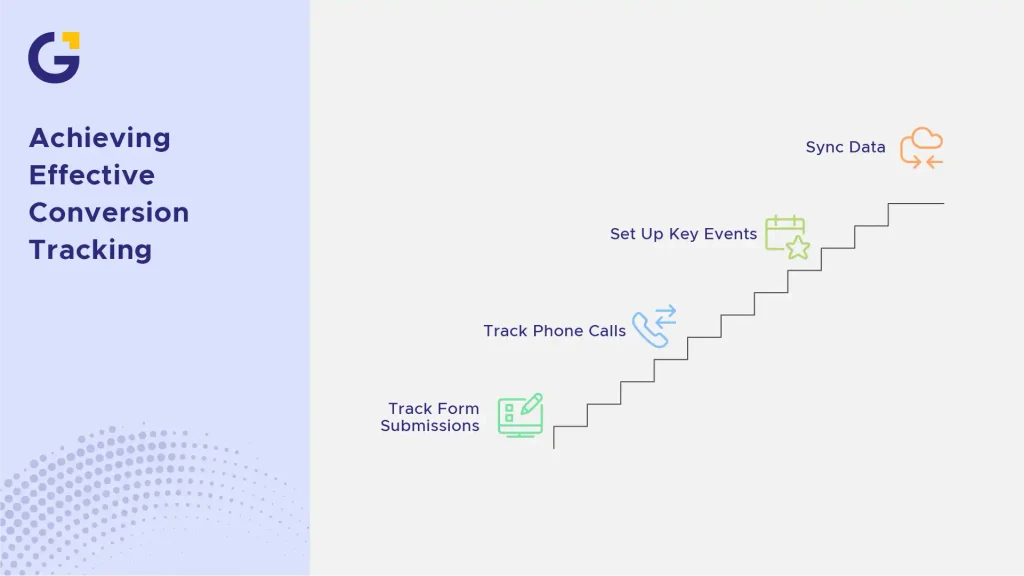
Tracking Form Submissions
Form submissions are usually tracked through Google Tag Manager by creating a trigger that fires when a form is successfully submitted (often a “thank you” page visit or a button click event).
Once configured, this becomes an event in GA4, which you can then mark as a key event (conversion).
Tracking Phone Calls and Bookings
For service businesses, phone calls often matter more than form fills. You can track call clicks on mobile (tel: links) and integrate third-party call-tracking software directly into GA4.
Pairing phone tracking with high-converting landing pages is critical; learn how to audit your site using our website conversion rate optimisation checklist to stop wasting ad spend.
Setting Up Key Events
In GA4, conversions are called “Key Events.” Once your custom events (like form fills or call clicks) are firing, navigate to Admin > Events, find your event name, and toggle the switch to mark it as a Key Event.
This flags the action as a valuable conversion in your reports and allows you to sync this data back into Google Ads or Meta campaigns for automated target-CPA bidding.
GA4 vs Universal Analytics: What’s Changed
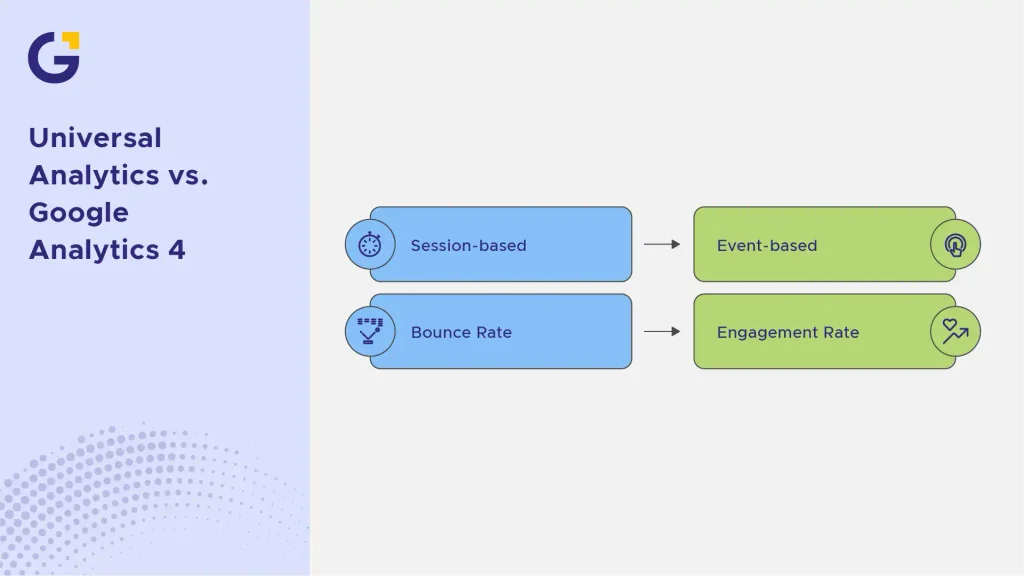
If you used the old Universal Analytics (UA), GA4 can feel unfamiliar. The biggest shift is from session-based tracking to an event-based model. Every hit in GA4, whether it is a pageview, link click, or purchase, is captured as an event.
According to technical documentation from Google Analytics Help, this model provides a far clearer picture of user journeys across devices. Additionally, bounce rate has been replaced by “Engagement Rate,” which measures sessions that lasted longer than 10 seconds, had a conversion, or viewed two or more pages.
Common GA4 Setup Mistakes to Avoid
Setting up GA4 incorrectly can corrupt your reporting and lead to bad business decisions. Here are the most frequent pitfalls Australian small businesses encounter:
- Not filtering internal traffic: Failing to exclude your own team’s IP addresses inflates traffic and skews conversion rates.
- Forgetting cross-domain tracking: If your checkout or booking system lives on a third-party domain (e.g., Shopify, Calendly, or Mindbody), failure to set up cross-domain tracking breaks the user journey.
- Ignoring first-party data strategies: With cookie deprecation underway, relying solely on basic browser cookies is no longer enough. To safeguard your tracking, discover how to implement first-party data strategies for Australian businesses.
- Not enabling Google Signals: Skipping this setting prevents GA4 from collecting cross-device data and demographic insights from signed-in Google users.
How to Read Your GA4 Reports
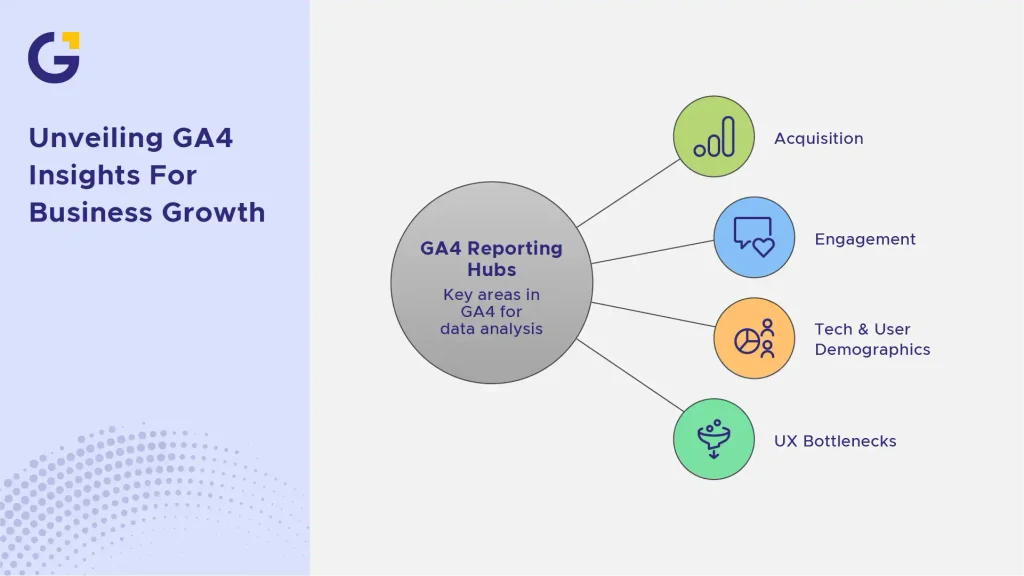
You don’t need to be a data scientist to get value from your GA4 dashboard. Focus on these three primary reporting hubs in the left sidebar:
- Acquisition (Where users come from): Look at the Traffic acquisition report to see whether Organic Search, Paid Search, Social, or Direct channels are driving your traffic and conversions.
- Engagement (What users do): Check the Pages and screens report to see which blog posts or service pages keep visitors engaged the longest.
- Tech & User Demographics (Who your visitors are): Ensure your visitors match your target market (e.g., verifying that traffic is coming from Australia rather than irrelevant overseas regions).
If you notice high traffic but low conversions on your key pages, your site may suffer from UX bottlenecks. Investing in user-focused UI/UX design services can instantly turn cold traffic into qualified inquiries.
FAQs
1. How long does a basic GA4 setup take for a small business?
A basic setup takes around 1 to 2 hours using Google Tag Manager. However, setting up custom lead tracking, e-commerce events, and phone call attribution can take longer depending on website complexity.
2. Why is my GA4 not showing real-time traffic?
This usually occurs if the tracking code is missing from specific pages, blocked by browser extensions, or if internal IP filters are actively blocking your device.
3. Can I track leads in GA4 without Google Tag Manager?
Yes, simple thank-you page conversions can be created directly inside the GA4 interface, but using Google Tag Manager gives you far greater flexibility for tracking button clicks and dynamic form submissions.
4. What is the difference between an Event and a Key Event in GA4?
An Event measures any user interaction on your site (like a pageview or scroll), whereas a Key Event is an event you manually mark as a conversion because it represents actual business value.
5. Is a proper GA4 setup for small business mandatory for running Google Ads?
While not strictly mandatory to launch ads, running Google Ads without GA4 key event tracking means Google’s AI cannot optimise for actual conversions, resulting in wasted ad budget.
6. How do I know if my GA4 tracking code is working?
You can visit your website in an incognito browser window while watching the “Realtime” report in your GA4 dashboard to confirm your active visit is being recorded.





 28 Nov 2025
 8 Min Read