
Your website was working fine last month. Now a plugin update has caused a broken contact form, nobody has noticed, and every lead that tried to reach you this week has vanished into an error page. This is exactly why business owners need a reliable monthly WordPress maintenance checklist rather than hoping the site will keep running smoothly on autopilot.
WordPress is not a “set and forget” platform. Themes change, plugins release patches, security threats evolve, and small issues quietly stack up until something breaks in public. Establishing regular WordPress website maintenance tasks catches these issues before your customers ever notice.
If your website has been neglected for a while, engaging a professional WordPress maintenance and support service can get it back to a safe, stable baseline before you start routine upkeep.
Why WordPress Sites Need Monthly Maintenance
WordPress powers a massive share of business websites globally because it is flexible and highly scalable. However, that flexibility relies heavily on themes and plugins, and those exact components represent the highest ongoing technical risk.
Every plugin and theme is built and maintained by different developers. When one updates, it does not always play nicely with others, your active theme, or your hosting environment. Even when leveraging modern AI WordPress automation frameworks, digital growth authorities like Neil Patel constantly emphasise that technical instability directly degrades both user experience and search rankings.
Example Case: A local services business installs a new SEO plugin without checking compatibility. It conflicts with an existing caching plugin, and the homepage starts showing a fatal error to visitors for three days before anyone notices.
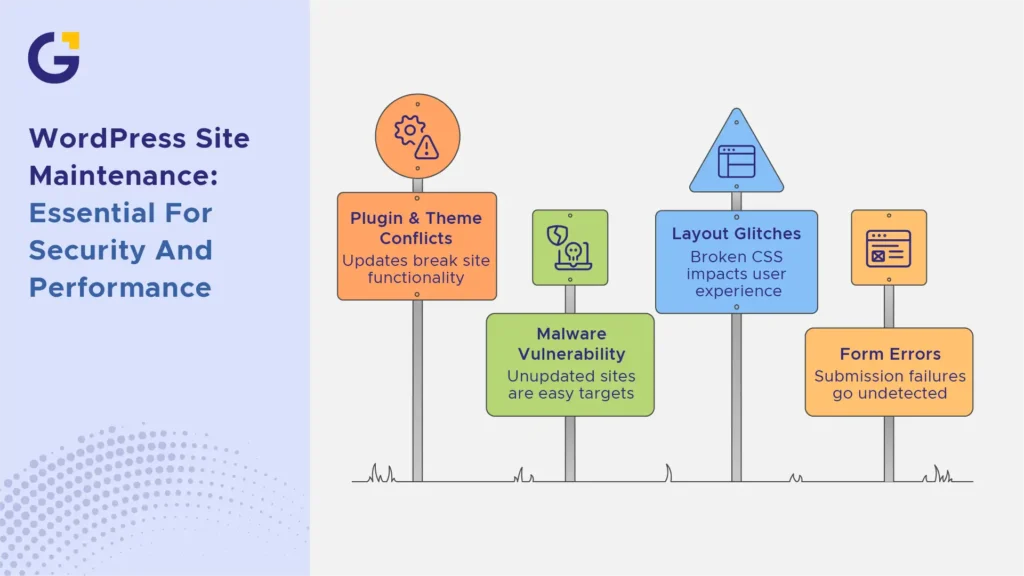
- Unmaintained sites are far more likely to be targeted by automated malware scans
- Neglecting WordPress plugin updates is one of the most common causes of site compromises
- Layout glitches, broken CSS, and form submission errors frequently go undetected without structured WordPress security maintenance
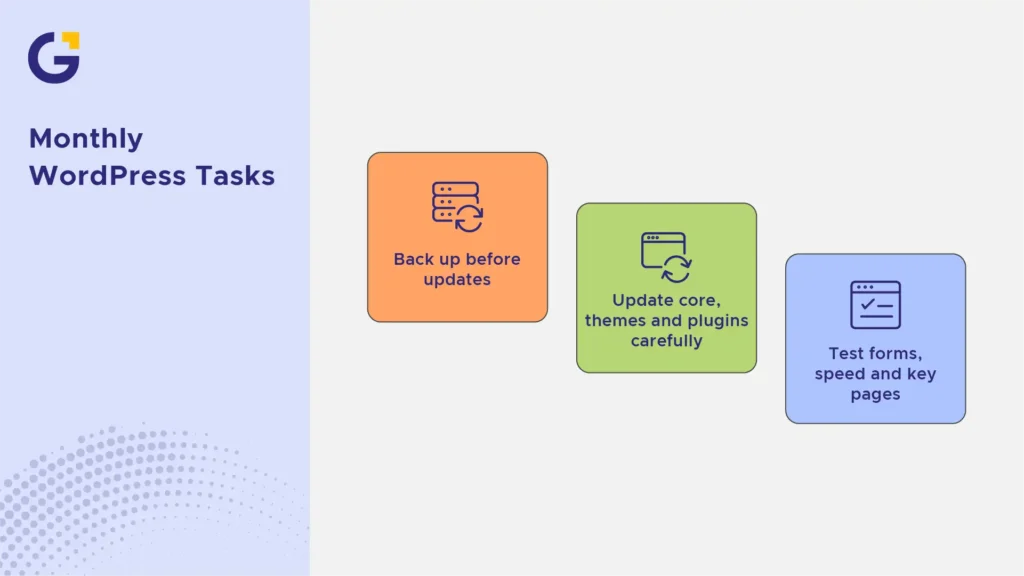
Monthly WordPress Tasks
A disciplined monthly WordPress tasks routine does not need to be overly complex, but consistency is essential. The goal is catching minor glitches while they are simple and quick to resolve.
Back up before updates
Never run updates without a fresh backup in place first. If an incompatibility occurs, a working backup allows you to restore normal operations in minutes rather than hours.
A comprehensive WordPress backup checklist must cover the full MySQL database, media uploads, theme files, and active plugins, not just raw text content.
- Confirm the backup archive completed successfully before executing updates
- Store at least one secondary copy off-site or within secure cloud storage
- Periodically verify that your WordPress backup can actually be restored in a staging environment
Update core, themes and plugins carefully
Updates should be executed deliberately rather than blindly clicking “update all.” Always review changelogs for major releases before deployment.
Update one or two plugins at a time on business-critical platforms, then manually verify front-end functionality. This disciplined workflow isolates the exact plugin responsible if a conflict occurs.
Executing routine WordPress plugin updates is a non-negotiable aspect of WordPress maintenance, not an optional administrative task.
Test forms, speed and key pages
After updates are applied, manually test the pages that matter most to your business. A broken contact form or checkout page can silently cost leads and sales for weeks.
- Submit a test enquiry through every contact and quote form
- Verify key landing pages display properly across desktop and mobile screens
- Run a quick performance audit based on proven website speed optimisation principles to confirm load times have not increased
Example Case: An e-commerce store updates its checkout plugin and skips testing. A shipping calculation error goes live, undercharging customers for two weeks before a customer complaint reveals the fault.
Security Checks to Run Regularly
Executing proactive WordPress security protocols is an ongoing requirement, not a one-time configuration. Technical vulnerabilities surface continuously, meaning a site secure six months ago may harbour known exploits today.
According to official WordPress.org Security documentation and global web safety standards, the vast majority of compromised sites run outdated core files, themes, or plugins. Neglecting these updates often triggers technical errors and search indexing failures in Google Search Console.
Monthly security checks should include:
- Reviewing active user accounts and revoking credentials for former staff
- Confirming SSL certificates are valid and properly forcing HTTPS connections
- Executing a deep malware and file-integrity security scan
- Monitoring server logs for brute-force login spikes or unauthorised access attempts
- Filtering comments and form submissions for automated spam patterns
Example Case: A business notices its site is sending unexpected emails. A security scan reveals a compromised plugin installed months earlier through an unused admin account that was never deactivated.
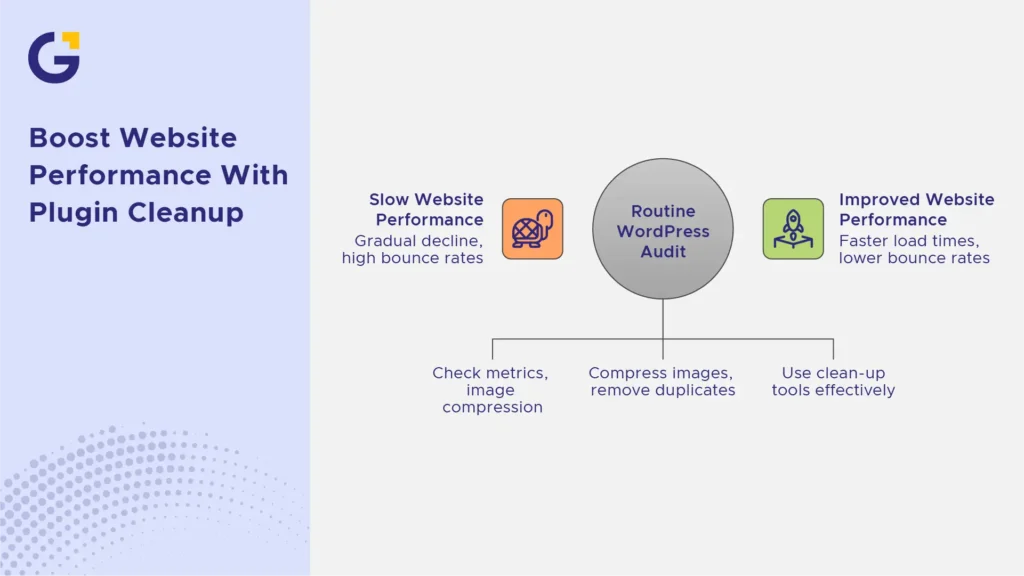
Performance and Plugin Bloat Review
Websites slow down incrementally over time. This gradual decline makes performance loss easy to overlook until bounce rates rise and search rankings drop. Excessive plugin bloat, unoptimised media libraries, and database overhead are the primary culprits.
Conducting a routine WordPress checklist audit should evaluate page speed metrics, image compression levels, caching layers, and active versus unnecessary plugins.
Removing inactive plugins, optimising image assets, and purging database clutter using clean-up tools yields measurable performance gains without requiring custom coding.
Example Case: A business site accumulates 40 plugins over two years, many installed for one-off tasks and never removed. A cleanup review cuts this to 18 active plugins, improving load time by nearly two seconds.
For websites where performance bottlenecks persist despite basic cleanup, professional technical optimisation for WordPress websites identifies deeper server-level and database issues.
When to Use Staging or Developer Support
Not every technical update should be performed directly on your live production site. Understanding when to use an isolated staging environment protects your business from unexpected downtime.
Working in a Staging Environment
A staging site is a duplicate of your live website hosted safely out of public view. In Australian tech hubs, enterprise teams led by leaders like Atlassian’s Mike Cannon-Brookes advocate strict staging workflows to prevent software bugs from hitting live users. You should always perform updates on staging when:
- Executing major WordPress core updates
- Updating complex e-commerce, membership, or custom API plugins
- Testing new themes or structural layout changes
Knowing When to Call a Developer
While basic plugin updates and content edits can be managed internally, complex issues require engineering expertise. Contact a specialised developer for:
- Resolving white-screen errors or database connection failures
- Cleaning malware infections or removing site blacklist warnings
- Fixing custom code conflicts caused by third-party plugin updates
If your internal team lacks the bandwidth or technical expertise, investing in custom WordPress website development or ongoing technical retainers ensures your digital assets remain secure and performant.
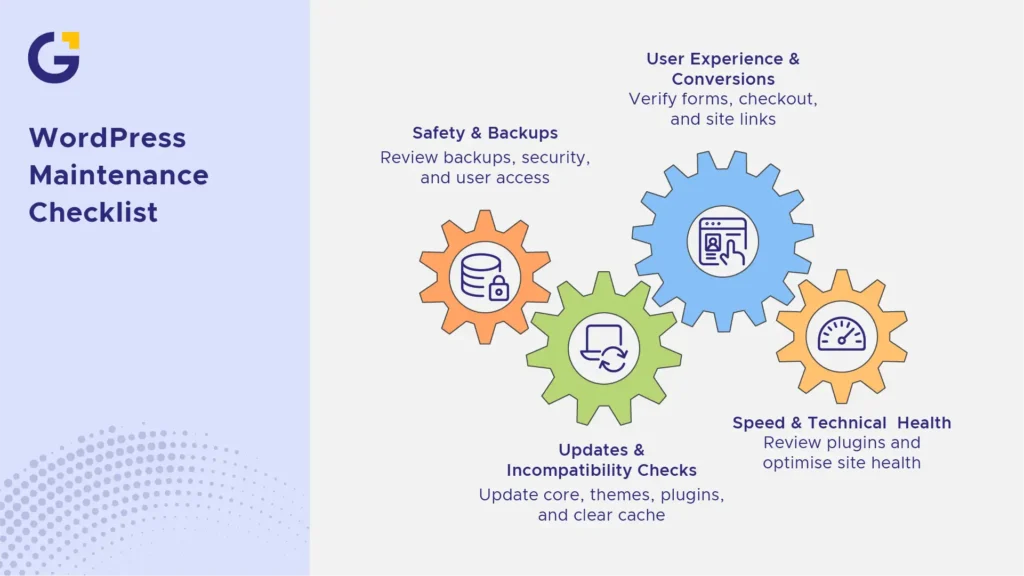
WordPress Maintenance Checklist
According to guidance from Google Search Central, technical site reliability, fast loading times, and secure HTTPS protocols directly impact how search engines index and rank your pages. Use this practical monthly WordPress maintenance checklist to keep your business platform operating at peak performance:
1. Safety & Backups (Monthly)
- Generate a complete off-site database and file backup.
- Test backup file integrity and restoration procedure.
- Run an automated malware and file integrity scan.
- Review user roles and delete inactive admin accounts.
2. Updates & Incompatibility Checks (Monthly)
- Update WordPress core files after reviewing release notes.
- Apply theme and plugin updates on staging first.
- Check front-end layouts for CSS or formatting breakage.
- Clear CMS and server-side cache layers after updates.
3. User Experience & Conversions (Monthly)
- Submit test submissions through all contact and quote forms.
- Verify e-commerce checkout and payment gateway processing.
- Scan for 404 broken links and update redirect rules.
4. Speed & Technical Health (Quarterly)
- Audit active plugins and delete unused or redundant extensions.
- Optimise database tables and clean up transient data.
- Review Core Web Vitals in Google Search Console.
Maintaining a clean, fast, and secure website preserves your search visibility, safeguards customer trust, and keeps your lead generation funnels operating smoothly. If you prefer to focus on growing your business while web experts manage the technical details, explore our dedicated WordPress maintenance Australia services today.
FAQs
What is included in WordPress maintenance?
A: It usually includes backups, core updates, plugin and theme updates, security checks, form testing, speed checks, uptime monitoring, and fixing broken issues.
How often should WordPress be maintained?
A business WordPress site should be reviewed at least monthly, with urgent security updates handled sooner.
Should plugins be updated automatically?
Some updates can be automated, but important business sites should be backed up and checked after updates to avoid broken layouts or forms.
Why do WordPress sites slow down over time?
Plugin bloat, large media, database clutter, poor hosting, and outdated themes can gradually reduce performance.
Do WordPress updates affect SEO?
They can if updates break templates, metadata, forms, speed or structured data. Maintenance checks help catch issues early.
When should a developer handle maintenance?
Use a developer when the site has custom code, ecommerce, booking systems, integrations, frequent errors, or high business value.





 20 Jul 2026
 8 Min Read