
To integrate an AI chatbot into a WordPress website, choose a chatbot plugin, install it through the WordPress dashboard, configure the chatbot widget, train it using your website content, connect it to contact forms or a CRM, and track performance through analytics. A good setup helps improve lead capture, support workflow, enquiry routing, and customer experience.
Many WordPress websites get visitors but fail to turn them into enquiries. Visitors often leave because they cannot find a fast answer, do not want to fill out a long form, or need help outside business hours.
An AI chatbot can help solve that problem. It can answer common questions, collect lead details, qualify prospects, and guide visitors toward the right next step. For Australian SMEs, it can also support sales follow-up and reduce repetitive admin work.
The mistake many businesses make is simple. They install a chatbot plugin, use the default settings, and expect strong results. That rarely works.
This guide explains how to add an AI chatbot to WordPress with a practical setup process. It covers planning, plugin install, training data, forms, CRM integration, analytics, privacy, testing, and common mistakes to avoid.
What Should You Do Before Installing a Chatbot?
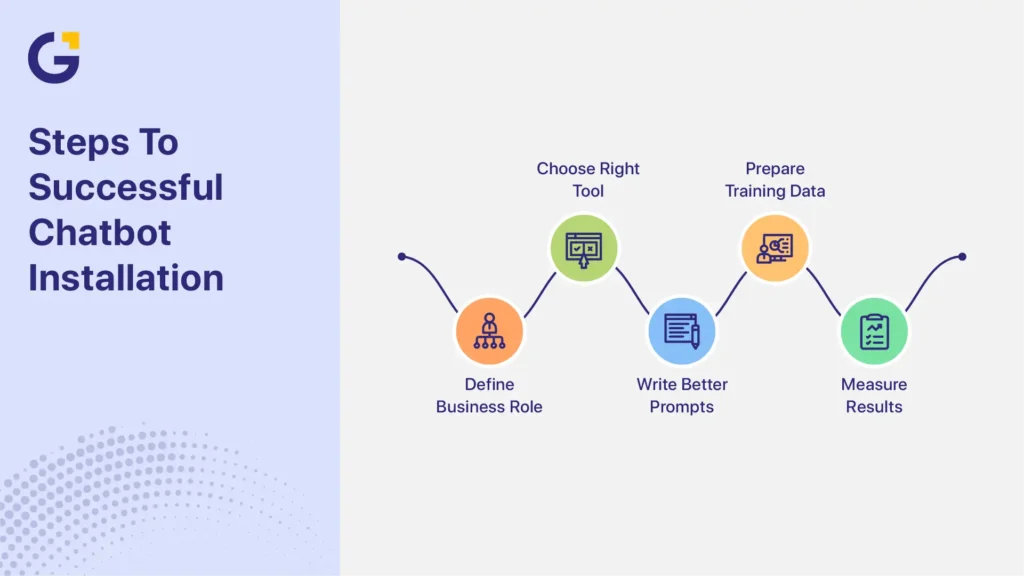
Before you install the chatbot plugin in WordPress tools, define the chatbot’s business role. A chatbot without a clear goal often becomes a generic pop-up that interrupts visitors instead of helping them. Planning first helps you choose the right tool, write better prompts, prepare useful training data, and measure the right results.
Define One Primary Goal
Your chatbot should have one main job at launch. For example, a chatbot can answer support questions, qualify leads, book consultations, or route enquiries. It should not try to solve every business problem on day one.
| Goal | Chatbot Setup Focus |
| Lead generation | Ask qualifying questions and capture contact details |
| Support | Answer FAQs and reduce repetitive emails |
| Booking | Push users toward calendar or contact form actions |
| Ecommerce | Help users compare products or find policies |
| Sales qualification | Collect budget, timeline, service needs, and contact details |
For a Sydney digital marketing agency, the first goal may be sales qualification. The chatbot can ask what service the visitor needs, whether they want SEO, website development, paid ads, or content marketing, then route the enquiry to the right team.
Choose Lead Capture or Support First
Lead capture and support require different chatbot behaviour. A lead capture chatbot usually appears on high-intent pages, such as service pages, pricing pages, or consultation pages. It asks short questions and moves visitors toward a form, call, or booking.
A support chatbot usually waits for the visitor to click. It answers common questions about services, timelines, process, pricing, policies, and next steps.
Many WordPress chatbots for small business setups work best as a hybrid. The chatbot answers common questions first, then offers a form or consultation when the visitor shows buying intent.
Industry best practices recommend designing chatbots around a specific user goal rather than attempting to answer every possible question. This typically improves user experience and conversation completion rates.
Prepare FAQs, Service Details, and Policies
Your chatbot will only be as useful as the information you give it.
Before your AI chatbot setup WordPress process begins, prepare a simple knowledge base with:
- 15 to 20 common customer questions
- Service descriptions in plain English
- Pricing guidance you are comfortable sharing
- Booking or enquiry steps
- Service areas
- Team availability
- Refund, cancellation, or support policies
- Links to key website pages
This becomes your training data. If your website content is thin, outdated, or unclear, the chatbot may give vague answers. In practice, chatbot quality often reveals content gaps across the whole website. Google’s guidance on helpful, people-first content aligns closely with chatbot training because both focus on providing clear answers to real user questions.
Businesses that already publish blogs, FAQs, and educational resources often have a head start because their chatbot can learn from existing content marketing support assets.
How Do You Add an AI Chatbot to WordPress?
You can add an AI chatbot to WordPress through a plugin, embedded script, or custom integration. Most SMEs should start with a plugin because it is faster, easier to manage, and does not require custom development. WordPress supports plugin-based extensions through its plugin system, which allows site owners to add features without rebuilding the website.
Businesses planning more advanced AI chatbot integration for WordPress projects may eventually need custom workflows, API connections, or website enhancements.
Pick a Chatbot Plugin
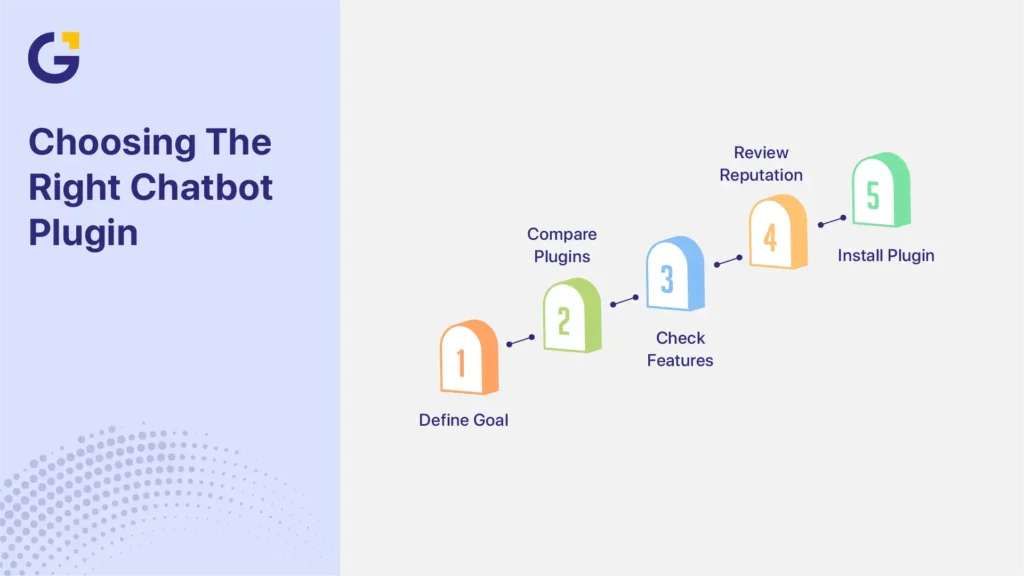
Choose a plugin based on your goal, not the longest feature list. For example, the AI Engine WordPress plugin and other AI chatbot tools offer different approaches to chatbot training, automation, and website integration.
| Plugin | Best For | Main Strength |
| Tidio | Small business chat and automation | Simple setup and live chat blend |
| HubSpot Chatbot | Businesses using HubSpot CRM | Native CRM connection |
| ChatBot.com | Visual chatbot workflows | No-code conversation builder |
| Intercom | Larger support and sales teams | Strong inbox and customer messaging |
| Drift | B2B sales qualification | Lead routing and sales workflows |
Businesses that want a chatbot with built-in form capabilities may also explore the Jotform AI Chatbot plugin, which combines conversational interactions with lead capture workflows.
When comparing plugins, check:
- Can it train on your website content?
- Can it connect to your contact forms?
- Does it support CRM integration?
- Can it track chatbot analytics events?
- Does it work well on mobile?
- Can you control where the chatbot widget appears?
- Does it meet your privacy requirements?
Also, review plugin reputation, update history, support quality, and security practices. WordPress plugins can affect site performance and security, so avoid installing tools you have not checked.
Install and Configure the Plugin
Most plugin installs follow the same process.
- Log in to your WordPress dashboard.
- Go to Plugins.
- Select Add New.
- Search for the chatbot plugin.
- Click Install.
- Click Activate.
- Connect your chatbot account.
- Complete the setup wizard.
After installation, configure the chatbot widget.
Set:
- Welcome message
- Brand colours
- Widget position
- Trigger timing
- Business hours
- Fallback message
- Human handoff options
- Mobile display rules
A clear welcome message works better than a generic one.
Weak message:
“Hi, how can I help?”
Better message:
“Hi, I can help with our services, pricing, booking steps, and common questions. What would you like to know?”
Start With High-Intent Pages
Do not enable the chatbot across the whole website immediately.
Start on pages where visitors are more likely to need help, such as:
- Service pages
- Pricing pages
- Contact page
- Booking page
- High-traffic blog posts
- Landing pages for paid advertising campaigns
This gives you cleaner testing data. It also reduces the risk of annoying visitors who are still reading early-stage content.
How Do You Train an AI Chatbot on Website Content?
Training is the step that separates a helpful chatbot from a frustrating one. To train AI chatbot on website content, connect it to your strongest pages, upload FAQ data, add service-specific answers, and test how it responds to real customer questions. Weak training data usually leads to vague, wrong, or off-brand responses.
Build a Clean Knowledge Base
A chatbot knowledge base should be structured, current, and written in the same language your customers use.
Include:
- Services
- FAQs
- Pricing rules
- Process steps
- Contact details
- Location details
- Delivery timelines
- Qualification questions
- Escalation rules
Avoid uploading old documents without checking them. If one page says consultations are free and another says they cost $150, the chatbot may give inconsistent answers.
Connect Key Website Pages
Most AI chatbot platforms can crawl selected URLs.
Good pages to connect include:
- Home page
- Main service pages
- About page
- Contact page
- FAQ page
- Case study pages
- Pricing or package pages
- Privacy policy
For a Genix Digital-style service website, the chatbot should understand SEO services, website design and development, paid advertising campaigns, social media marketing, content marketing services, email marketing strategy, and free consultation options.
Add Missing Answers Manually
Website content does not always contain the exact answers customers ask for.
This is a common issue with chatbot training. The page may describe a service well, but it may not answer direct questions like:
- How long does setup take?
- Who will manage my campaign?
- Can I speak with someone first?
- Do you work with small businesses?
- What happens after I submit the form?
Add these answers manually to improve accuracy.
How Do You Connect a Chatbot to Forms, CRM, and Lead Follow-Up?
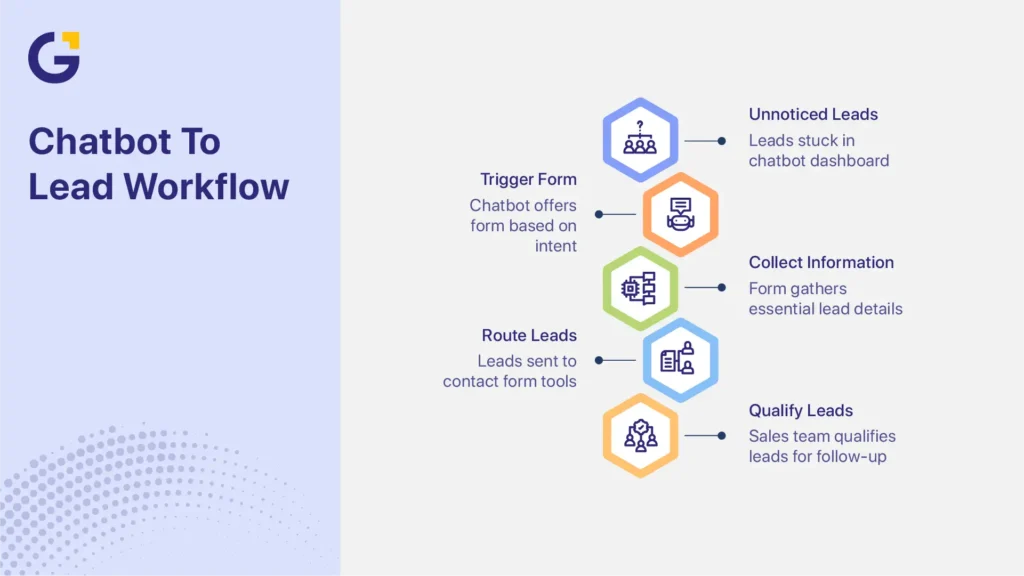
A chatbot should not only answer questions. It should move useful enquiries into your business workflow. Connect chatbot to contact form tools, CRM platforms, email notifications, and analytics so leads do not sit inside the chatbot dashboard unnoticed. This supports enquiry routing, sales qualification, and faster lead follow-up.
Connect Chatbot to Contact Form Actions
Set the chatbot to offer a form when visitors show intent.
Useful triggers include:
- Asking about pricing
- Requesting a quote
- Asking to book a call
- Asking about availability
- Visiting a service page for more than 30 seconds
- Completing two or more useful exchanges
The form should collect only what your team needs.
For most SMEs, start with:
- Name
- Phone number
- Service needed
- Budget range
- Timeline
- Short message
Shorter forms usually reduce friction. Ask extra questions only when they improve lead quality.
Set Up CRM Integration
CRM integration helps your team manage leads after the chat ends. It also supports email marketing automation, allowing businesses to send follow-up sequences, consultation reminders, and nurture campaigns automatically.
Common CRM workflows include:
- Create a new contact
- Add a service interest tag
- Assign the enquiry to a team member
- Trigger an email follow-up
- Create a deal or pipeline record
- Save the chat transcript
Platforms such as HubSpot, Salesforce, Zoho CRM, Pipedrive, Zapier, and Make.com can support different levels of automation. Zapier can connect WordPress and chatbot tools with many third-party apps, which makes it useful for no-code workflow setup.
Route Enquiries Correctly
Enquiry routing helps send leads to the right person. Even the best chatbot should provide an easy path to a real person when questions become complex, urgent, or highly specific.
| Visitor Need | Suggested Routing |
| SEO enquiry | SEO strategist |
| Website project | Web development team |
| Paid ads enquiry | Ads specialist |
| Existing client support | Account manager |
| General question | Admin or support inbox |
The handoff should include the transcript. This saves the visitor from repeating the same details.
What Are the Most Common AI Chatbot Integration Mistakes?
Most chatbot problems come from weak planning, poor training, or missing follow-up. The plugin is rarely the only issue. In many WordPress chatbot setup projects, businesses install the tool correctly but miss the details that affect trust, lead quality, and conversion tracking.
| Mistake | Why It Hurts | Better Approach |
| Using default messages | Feels generic and unhelpful | Write messages based on user intent |
| Training on thin content | Creates vague answers | Build a stronger knowledge base |
| Site-wide launch on day one | Harder to test and control | Start with high-intent pages |
| No human handoff | Frustrates visitors | Add email, phone, or booking options |
| No CRM connection | Leads may get missed | Send enquiries into a follow-up workflow |
| No analytics events | Performance is unclear | Track chat opens, leads, and bookings |
| No privacy notice | Weakens trust | Add clear data collection language |
A simple rule helps: if the chatbot cannot answer, route, or record the enquiry properly, do not launch it yet.
How Should You Test a WordPress Chatbot Before Launch?
Test the chatbot like a real customer, not like the person who built it. Ask unclear questions, use casual wording, test mobile devices, submit forms, check notifications, and review handoff behaviour. Testing protects customer experience and helps fix problems before the chatbot starts handling real visitors.
Test Common Questions
Ask your top customer questions in several ways.
Example:
- How much do you charge?
- What are your prices?
- Do you have packages?
- Can I get a quote?
The answer should stay accurate even when the wording changes.
Test at least:
- Service questions
- Pricing questions
- Booking questions
- Location questions
- Support questions
- Off-topic questions
- Urgent questions
The chatbot should also admit when it cannot help.
Test Forms and Notifications
Submit test leads through every chatbot form.
Confirm:
- The form submits correctly
- The email notification arrives
- The CRM record is created
- Required fields work
- Optional fields behave correctly
- The chat transcript is saved
- The thank-you message appears
If your team never receives the lead, the chatbot is not ready.
Test Mobile Placement
Mobile testing matters because the chatbot widget can block key actions.
Check that it does not cover:
- Phone buttons
- Sticky menus
- Booking buttons
- Cookie banners
- Checkout buttons
- Contact forms
Use real phones where possible, not only browser previews.
How Do You Track Chatbot Performance?
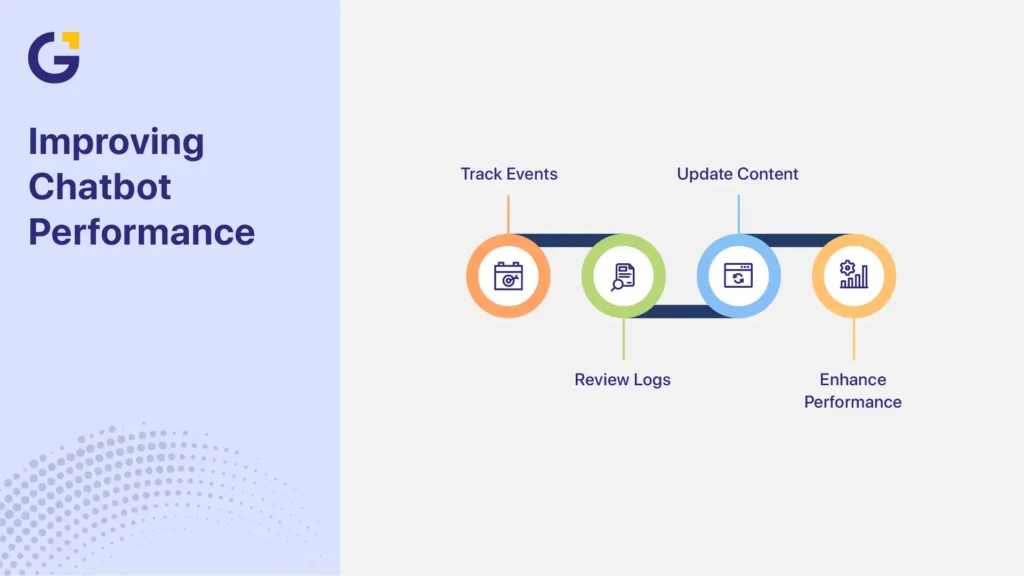
Chatbot analytics tracking tells you whether the chatbot helps visitors or creates friction. Track conversations, form submissions, booking actions, CRM records, and failed answers. Google Analytics 4 supports event-based tracking, which helps businesses measure actions such as chat opens, lead submissions, and completed bookings.
Track the Right Events
Useful chatbot analytics events include:
| Event | What It Shows |
| Chatbot opened | Visitor interest |
| Conversation started | Engagement quality |
| Form submitted | Lead capture |
| Booking clicked | Sales intent |
| CRM lead created | Workflow success |
| Human handoff requested | Support need |
| Failed answer | Training gap |
Do not track only chat volume. A high number of chats does not always mean more qualified leads.
Review Conversation Logs
Review failed conversations often during the first month.
Look for:
- Repeated unanswered questions
- Confusing chatbot replies
- Visitors asking for a person
- Drop-offs before form submission
- Incorrect pricing or service answers
Failed answers are often the fastest way to improve chatbot performance. If visitors repeatedly ask questions the chatbot cannot answer, update both your website content and chatbot knowledge base to close those gaps.
What Privacy Checks Apply to AI Chatbots in Australia?
If a chatbot collects names, emails, phone numbers, IP details, or conversation history, your business should explain how that data is handled. For chatbot GDPR privacy Australia concerns, review your privacy policy, consent wording, third-party providers, and data storage practices. The Office of the Australian Information Commissioner (OAIC) provides guidance on how organisations should collect, store, use, and disclose personal information under the Australian Privacy Principles.
Update Your Privacy Policy
Your privacy policy should mention chatbot data collection if the chatbot stores user information.
Include:
- What data the chatbot collects
- Why the data is collected
- Which third-party tools process the data
- How long data may be stored
- How users can request access or correction
- How users can contact your business
This is not only a legal issue. Clear data language also supports trust.
Add a Simple Notice Before Forms
Use plain language near chatbot forms.
Example:
“We will use your details to respond to your enquiry. You can read how we handle personal information in our privacy policy.”
If you want to send marketing emails, use a separate optional consent checkbox.
When Should You Use a Custom AI Chatbot Integration?
Use a custom integration when plugin workflows cannot handle your lead routing, CRM rules, reporting needs, or service complexity. Most SMEs should start with a plugin. Custom development makes more sense when each lead has high value, multiple teams need different data, or the chatbot must connect several systems in real time.
DIY Plugin vs Custom Integration
| Factor | DIY Plugin | Custom Integration |
| Setup time | Faster | Slower |
| Cost | Lower | Higher |
| CRM flexibility | Basic to moderate | Advanced |
| Maintenance | Usually plugin-managed | Requires developer support |
| Reporting | Built-in dashboards | Custom analytics possible |
| Best for | SMEs and simple workflows | Complex sales or support systems |
| Risk | Generic setup | Higher build complexity |
Advanced CRM and Automation Needs
A custom setup may be useful when the chatbot must:
- Score leads based on answers
- Send leads to different sales teams
- Trigger email automation
- Check calendars
- Create custom CRM fields
- Sync data across multiple platforms
- Connect with the WordPress REST API
For many businesses, no-code tools such as Zapier or Make.com are a practical middle step before custom development.
Complex Service Routing
Custom routing may help businesses with several services, locations, or departments.
Examples include:
- Healthcare clinics
- Multi-location service businesses
- B2B agencies
- Franchise groups
- Professional service firms
The goal is not automation for its own sake. The goal is to get the right enquiry to the right person with enough context for a useful response.
How Can Australian SMEs Get Better Results From a WordPress Chatbot?
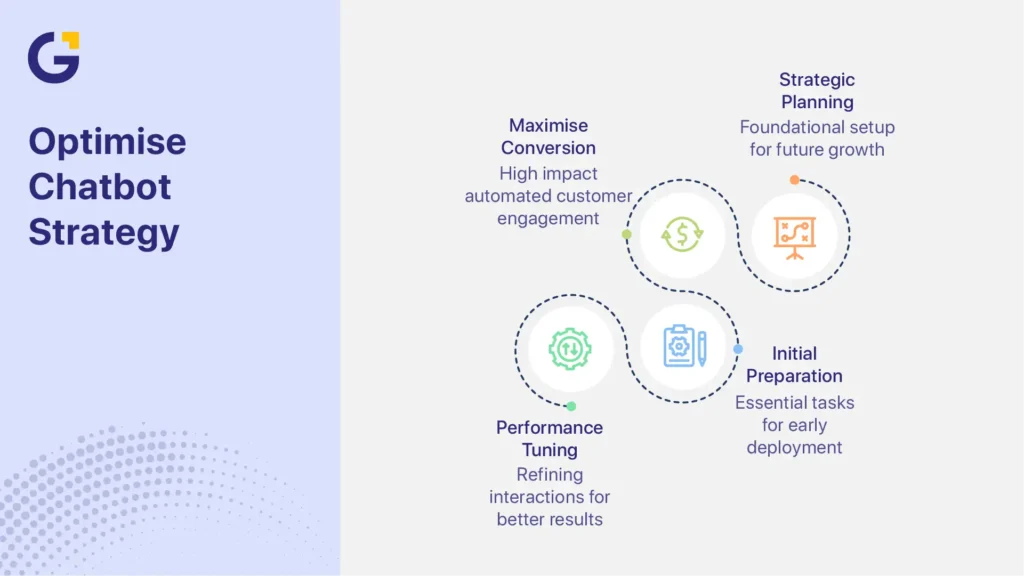
The best WordPress chatbot for small business websites works as part of a wider conversion system. It should support website development, contact forms, CRM integration, analytics, privacy, customer experience, and follow-up. A chatbot cannot fix a weak website, but it can improve how visitors find answers and take action.
Use this final checklist before launch:
- Define one main chatbot goal
- Prepare a clean knowledge base
- Choose a plugin that supports training data
- Install and configure the widget carefully
- Start on high-intent pages
- Connect forms and CRM workflows
- Add human handoff options
- Set up chatbot analytics tracking
- Test mobile placement
- Update your privacy policy
- Review failed answers after launch
Ready to Improve Lead Generation and Customer Engagement?
Whether you’re implementing your first chatbot or looking to improve an existing setup, Genix Digital can help review your website, CRM workflows, chatbot opportunities, analytics tracking, and conversion strategy.
Book a chatbot integration consultation today and discover how AI can help turn more website visitors into qualified leads.
Frequently Asked Questions
How do I add an AI chatbot to WordPress without coding?
You can add an AI chatbot to WordPress without coding by installing a chatbot plugin from the WordPress dashboard. After activation, use the plugin setup wizard to configure the chatbot widget, add training data, connect forms, and test the chatbot before launch.
Can I train a WordPress chatbot on my own website content?
Yes. Many chatbot tools let you train a WordPress chatbot on website content by connecting URLs, uploading FAQ files, or adding question-and-answer pairs. This helps the chatbot provide more accurate responses based on your services, policies, and customer process.
Do I need a developer for WordPress AI chatbot integration?
Most SMEs do not need a developer for basic WordPress AI chatbot integration. A developer may be helpful when you need custom CRM integration, advanced routing, API connections, WordPress REST API work, or complex automation across multiple systems.
How do I track leads from my WordPress chatbot?
Track chatbot leads through built-in plugin analytics, CRM records, form submissions, and Google Analytics 4 events. Useful events include chat opened, conversation started, form submitted, booking clicked, and CRM lead created.
What should I test before publishing my chatbot?
Before publishing your chatbot, test common questions, contact forms, mobile placement, email notifications, CRM integration, human handoff, business hours, and failed-answer behaviour. The chatbot should answer accurately, capture leads correctly, and offer human help when needed.




 24 Apr 2026
 9 Min Read